If you go to the Relations tab of a page, click the Add button and choose Add Related Item, Add Related Asset, Add Related Image, or Add Related Video.
This will relate the current page to one or more other pages or images on your site.
There are a few reasons you might want to do this...
- If you relate an image to a page, then it will appear in any Child List, Item List, or Filtered Item List includelet that links to that page.
- If you relate several images you can then use the Related Media Gallery (previously called Related Image Gallery) to create a gallery on that page of all the associated images (and videos).
- You can also use the Content Item Metadata to include a related image or video on a page.
- If you relate pages to each other, you can use the Filtered Item List to create links betwen pages of similar topics.
So, to give an example, here's the Noticeboard section of the main Voice website.
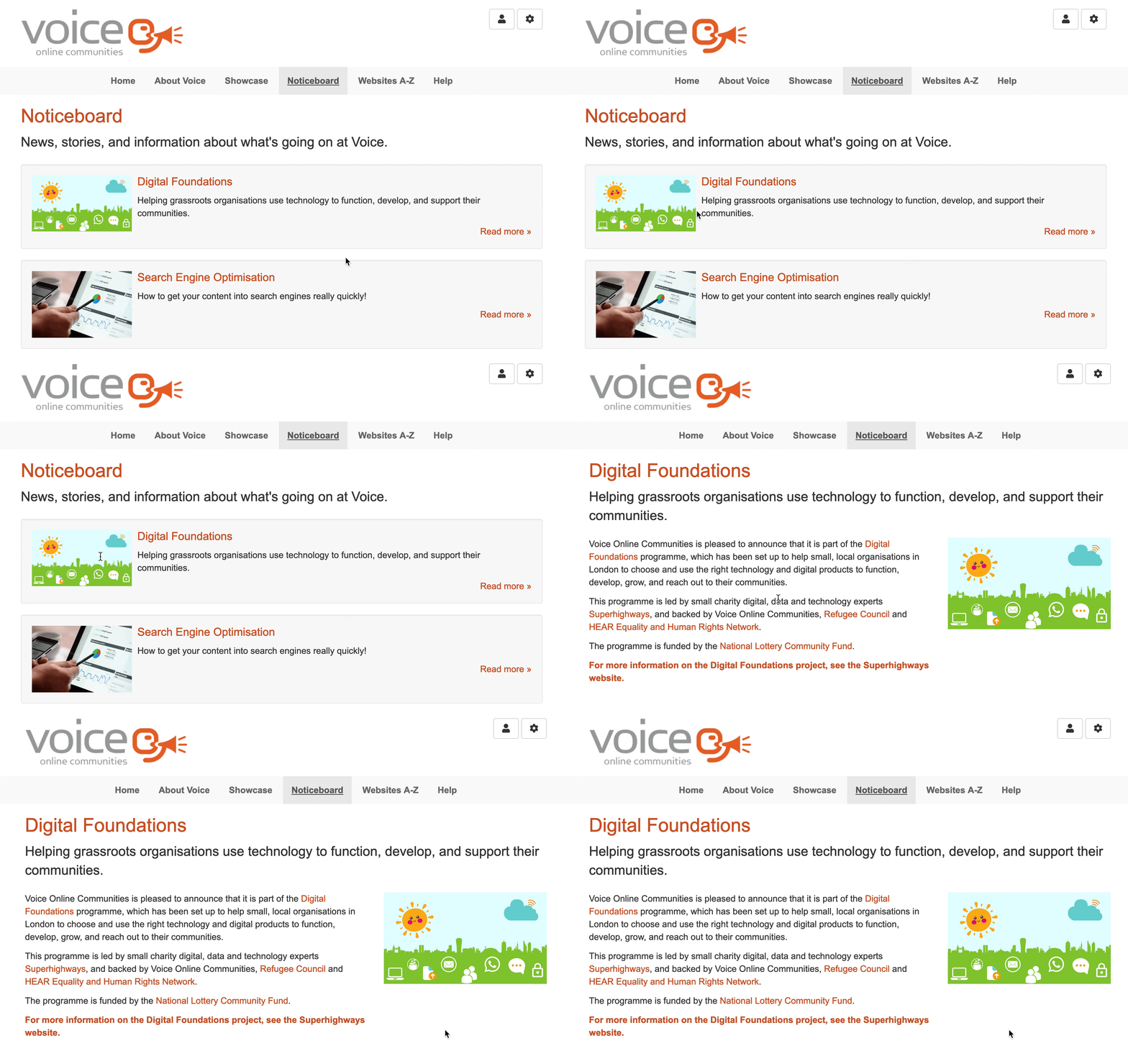
This grid of pages is made using the Filtered Item List includelet, which is configured to show each item in Separate Wells, and to show Title and Subtitle, with Related Media (previously called Related Image). This makes a nice looking list of links to pages that can be clicked on. (The same could be more simply achieved with the Child List includelet, but Filtered Item List has lots more configuration options should I want to change the layout later.)
There's a Content Item Metadata includelet configured to show Related Media, which is placed in the Right column on the main Noticeboard page and configured to inherit to all subpages.
This means that if a page has a related image or video, it will be shown in the Right column of that page. If there is no related media then nothing is shown.