Welcome to our Computing & Technology page. Phil Jones from Phil Jones Computers Ltd who brings us his piece for the spring 2026 edition (06-02-26)
Cookies (Spring 2026)
I have been asked, "What are cookies and should I be worried about them?"
The short answer is they are small files that are fairly harmless.
They are called cookies perhaps because of the jokey idea that "magic Internet goblins leave crumbs in your computer whenever you visit their websites".
The longer answer is a cookie is used by a website to recognise the web browser program that you are using when you come back for a second time.
Cookies are used to distinguish you from all the other people who are using the same website at the same time.
For example, cookies are needed by shopping websites to keep track of your progress through the shopping system.
There are some websites that specialise in producing adverts for other websites. Doubleclick.net is an example.
Advertisers love all this because they can use it to find interesting patterns. For example, people who like horses also like dogs, or, people who like running also like KitKats.
Here is a funny story to illustrate this. I was out cycling near Hedgerley. I stopped by the quarry. I wondered, what does that big machine in the middle of the field do?
I put the name of the machine into the Google website using my smartphone. For weeks afterwards I got many adverts on the news websites that I use for industrial equipment for my gravel pit.
If you clear cookies from your web browser's history then the websites think you are starting afresh, you get general purpose adverts again and you get asked all the questions about cookies again.
I say they are fairly harmless because they are in the control of the user.
Did this help? Let me know!
--
Phil
07904 125648
Printers (Winter 2025)
Don't dry out
"I see you've printed out your Eurostar ticket as well", I said to the young man next to me in the queue at the the Brussels-Midi station for London. "You never know", he smiled in reply. "My phone might run out of battery". He had his e-ticket on his smartphone, but he still wanted a paper copy.
I think that is an example of how you might use your printer less often nowadays, but it is more important when you do want to use it.
With inkjet printers, it is a good idea to print a few test pages at least once every two weeks to stop it drying out. The printer's nozzle test page will help to keep the ink flowing.
Which printer?
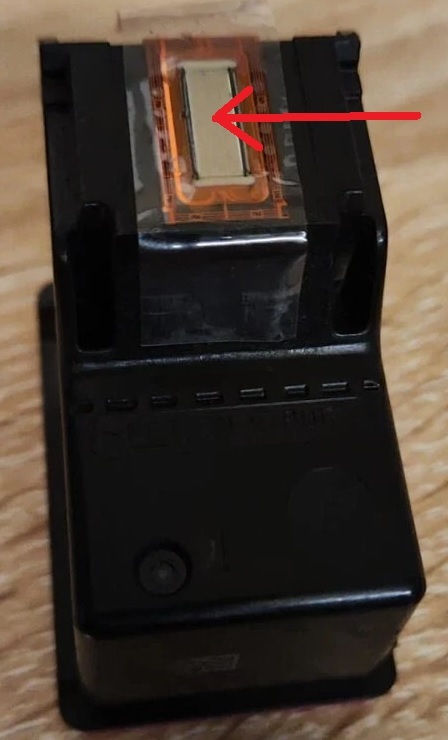
I prefer inkjet printers that have a replaceable print head. The print head is the part that puts the ink on the paper. The print head is the part where the technology is and it is the part that is the most likely to go wrong. Here is an example of what the print head looks like on a black cartridge:
Some printers have the print head fixed into the printer itself and can't be easily replaced. If you want an inkjet printer, I suggest going for the sort of printer that either has a removable print head or one where each cartridge has its own print head.
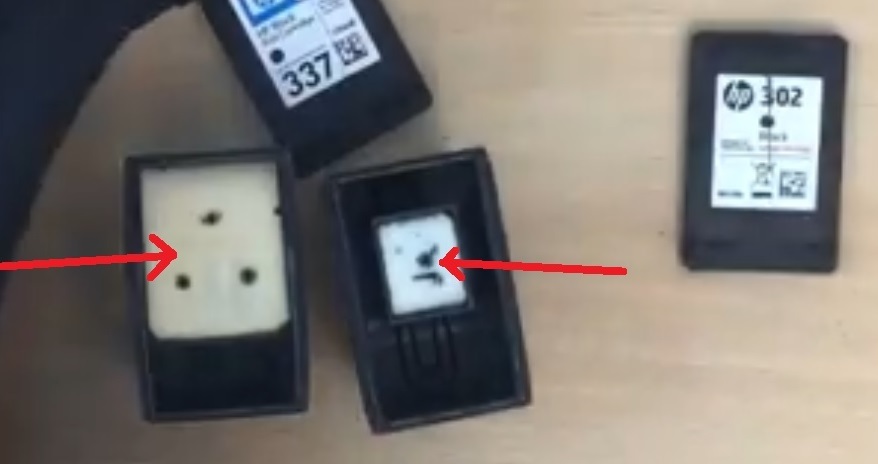
By the way, not all cartridges are made the same. Recently, I broke open an HP cartridge and was surprised to find that a lot of the space inside the cartridge was empty.
For example, inside the HP 337 cartridge on the left, most but not all of the space is occupied by the sponge that carries the ink. In the similarly-sized HP 302 cartridge on the right, the inky sponge is amazingly small!
The picture below is from a Youtube video on the subject: https://www.youtube.com/watch?v=0A7t4Uv6jsk
If you are not bothered about colour printing, consider a black-only laser printer. Laser printers work using dry powder so they're not prone to drying out. However, you may find that the toner cartridge that it comes with is small in capacity and you have to buy a new one sooner than you think.
I wondered, how much is a printer that comes with maximum everything out-of-the-box?
For example, I looked at the HP LaserJet Enterprise M611dn. At £579.11, it comes with black ink that should last for 10,500 A4 pages. Sounds good? But even that is not as much as it could be. The £550.50 Extra High Yield Black Cartridge for it should last for 42,000 pages.
This means that even printers costing nearly £600 may still come with stingy-inks, relatively speaking.
Inks in the post?
What about the subscription deal where the printer company sends you cartridges in the post? The printer uses its Internet connection to send off for new ones automatically. I think it is quite a good deal. I have customers who are using it and are happy with it.
I have found there are two things to bear in mind. Firstly, if you don't use up all your allowance then it rolls over for a few months but then, like mobile phone pay-as-you-go credit, it disappears. Secondly, the cartridges they send you in the post only work as long as you have signed up to the scheme. If you stop paying then the printer knows and the cartridges that they sent you in the post won't work anymore.
That is my experience of the economics behind the home and office printing business. Did this help? Let me know!
Phil
--
07904 125648
Printers & Networks (Autumn 2025)
One of the frustrating things about printers connected to a home network through a router/modem is, how do you know that the laptop, PC, phone or tablet you are using can see that the printer is there on the network?
This assumes that the device you are using and the printer are both connected to the same router/modem with the same wireless network name or with Ethernet network cables.
1. Find the printer's IP address. IP stands for Internetworking Protocol. In some Canon printers, the IP address you want is called the IPv4 address.
The IP address is usually given to the printer automatically by the router/modem.
How you find what IP address the printer has, depends upon which printer it is.
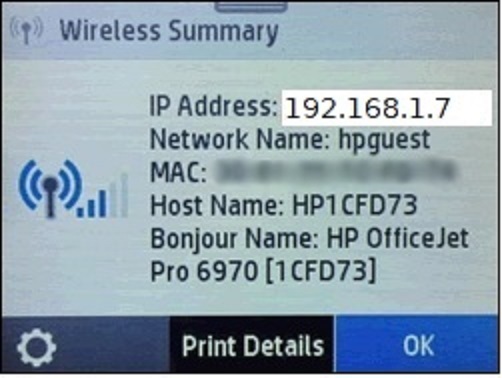
The IP address you are looking for consists of four numbers between 0 and 254 separated by dots, where the first number is 192 or 10. For example, here's what the screen of an HP printer might look like given the IP address 192.168.1.7:
2. On the laptop, PC, phone or tablet you are using, start the web browser eg Mozilla Firefox, Apple Safari, Google Chrome or Microsoft Edge.
3. Type the printer's IP address into the Location bar of the web browser and then press the Enter key on the keyboard, like this:
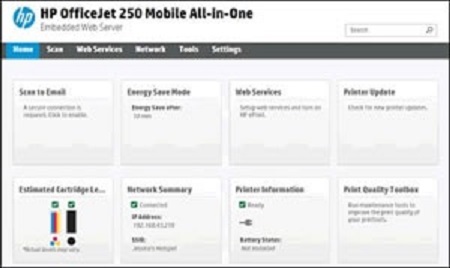
If the web browser asks if you are sure, click on Allow or Continue. You should get the printer's built-in status web page, like this:
The appearance of this page is a good sign. It confirms that the network connection from the device you are using, through the router/modem, to the printer, is working.
This doesn't always mean that printing over the network will work. There might be something else you need to do -- but it's an excellent first troubleshooting step. That's why I wanted to share it with you. Did this help? Let me know!
Phil Jones
--
Phil Jones Computers Ltd
07904 125648
Email: phil {at} pjc.me.uk. Replace {at} with @ to email. Web: www.pjc.me.uk
7 Bridgestone Drive, Bourne End, Bucks SL8 5XG